Combined Invoice Texts
Available in license(s): Finance
Setting Up the Functionality
With the Combined Invoice Text Feature, the user can set up fields that should be shown when a combined invoice is created.
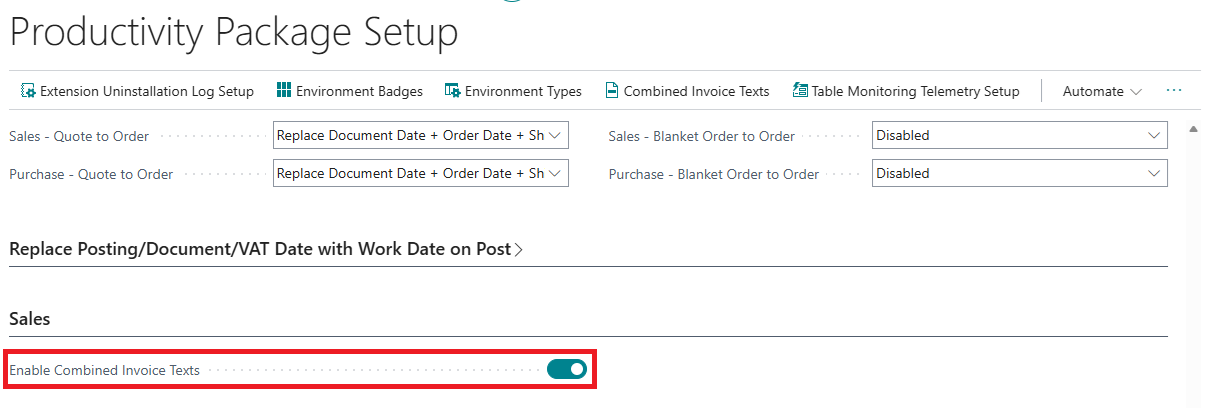
To set up this functionality, use the Tell Me search feature (Alt+Q, or click on the ‑icon in the top right corner) to search for and open the Productivity Package Setup page and activate the Enable Combied Invoice Texts setting:
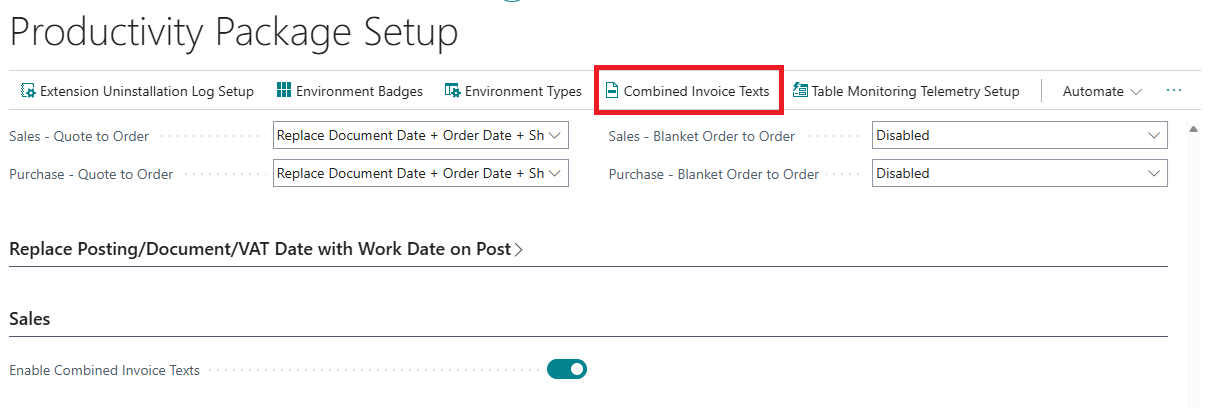
Now, with this setting enabled, you can define wich fields should be used in the text lines of the Sales Invoice. Invoke the Combined Invoice Texts action:
Here, you can set up the data you want to have in the combined sales invoice:

-
Language Code: You can set up the desired texts per document language
-
Text Line For: The functionality is available for both the Sales Invoice as well as the Sales Credit Memo document type
-
Replacement Text: Similar to standard Business Central functionality as used in reminders etc.
You can enter a text and use parameters to include data from the Sales Shipment Header. In the example above, we have included 3 fields from this table.
-
Field 1 until 5: It is mandatory to include the number of the the Delivery Note, the Field 1 is reserved for this. As a user you can include up to 4 other fields from the table.
Note
When you have extension fields on the Sales Shipment Header table, you can include fields from these extensions as well.
Using the Functionality
To use the defined texts, you do not have to do anything special, just run the Combine Shipments batch.
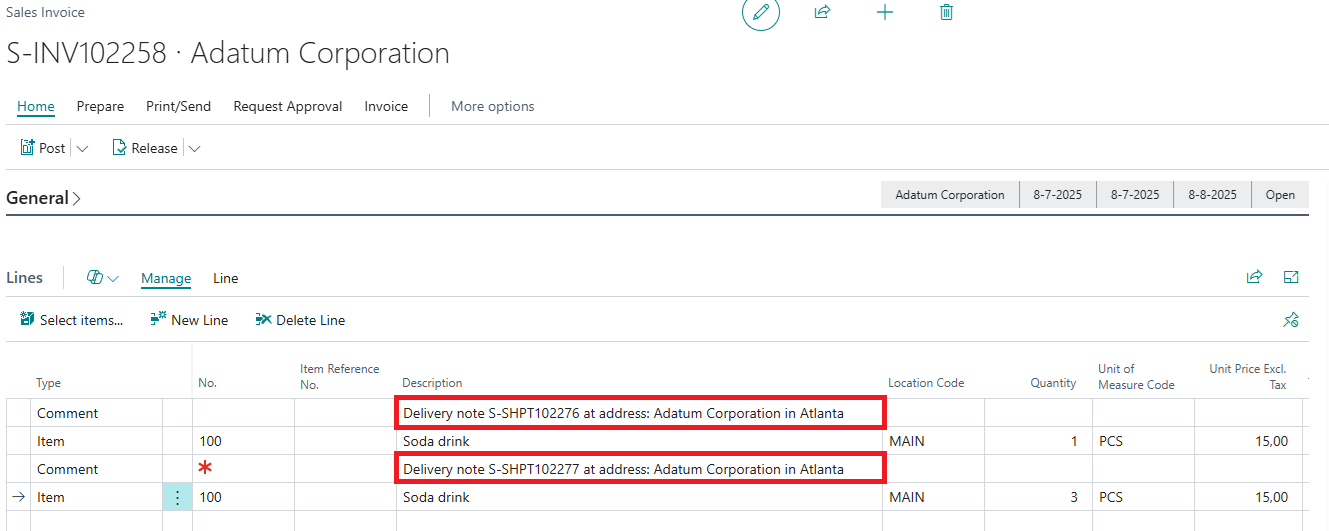
With our example, it leads to the following invoice lines: