Environment Copy Setup Tables
Available in license(s): Admin
With the Environment Copy Setup function you can configure which fields in tables should be updated when you create a copy of an existing environment. This includes file locations and URLs that need to be adjusted when making a copy from a production environment to a test environment. This prevents data from a Business Central test environment from being written to live applications.
To configure this functionality:
-
Go to the Productivity Package Setup page. On this page, invoke the Environment Types action.
This will open up the Environment Subtypes page. From this page, you can set up the copy function for each Environment Subtype you have defined.
-
Open the Environment Copy page:
-
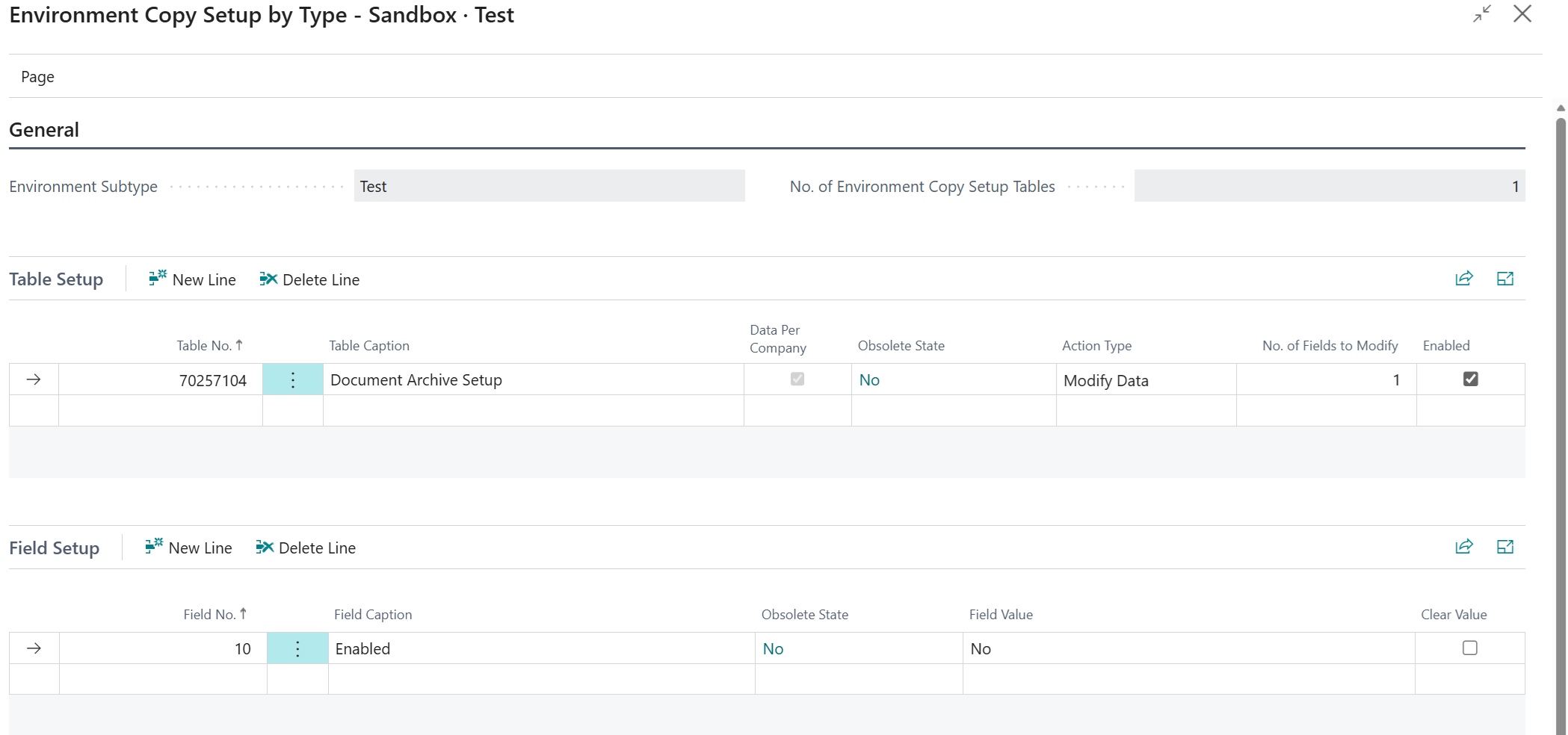
In the Table Setup part, you can define in whaht tables you want to replace values. In the example above, we want to disable the Document Archive app in the test environment. We want to do this for all companies within the environment, therefore we do not mark the "Data per Company" field.
The Obsolete State indicates whether the table will be discontinued in futute versions of Business Central:
- When a line is Red (
Style = Unfavorable) it indicates that the table and/or field is marked obsolete. - Pending indicates the table/field is still accessible but will be removed in a future version.
- Removed indicates the table/field is not longer available and this action will fail if attempted to run.
- Clicking on the Obsoleted (Pending or Removed) field will display a message with the Obsoleted Reason.
- When a line is Red (
-
In the Action Type field, the user can define what should be done with the data in this table. Sometimes it can be usefull to delete the contents of the entire table (for instance e-mail adresses). In this case we want to modify the settings, and we select "Modify Data". The No. of Fields to Modify field sums the number of fields defined in the Fields Setup page part.
-
The Fields Setup part is used to setup the value of the fields that should be modified when the environment is copied.
In the example above, the Enabled setting that turns the Apportunix Document Archive functionality on or off is switched off. You can of course modify more than one field in a table. If you want to do this, you just have to create multiple lines in the page part.
Updating the Environment According to the Settings
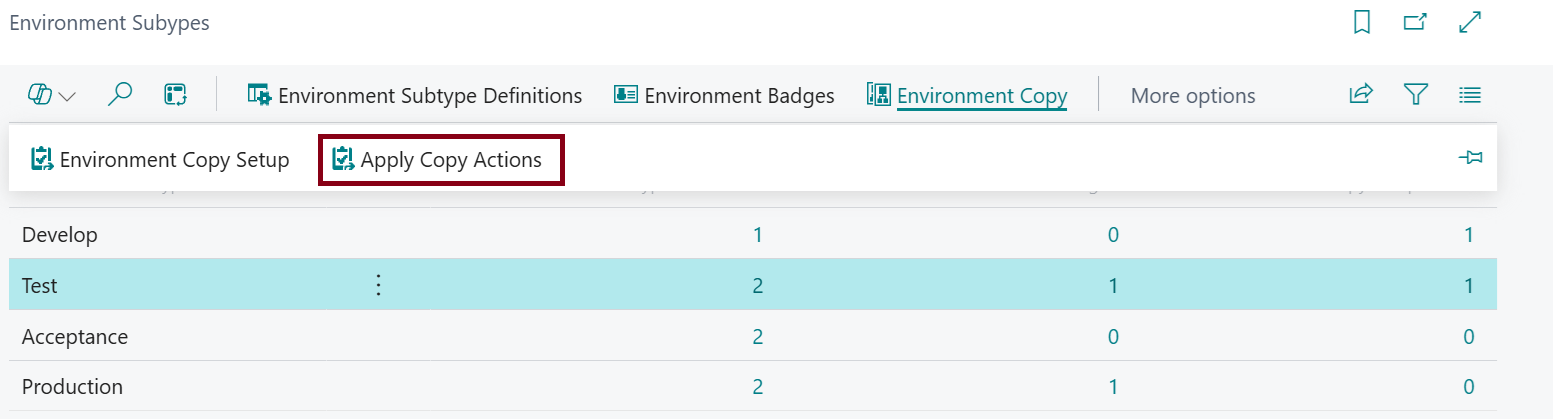
The settings are applied automically when the environment is copied. When you want to apply the settings on a later moment (because you have changed/added settings), you can use the Apply Copy Actions actionbutton:
Note
The Environment-Copy functionality is meant to update setup/configuration tables. Although it is possible to select transactional tables in the Table Setup, this functionality is not meant to clear or update these tables.